Home Blog Page 11

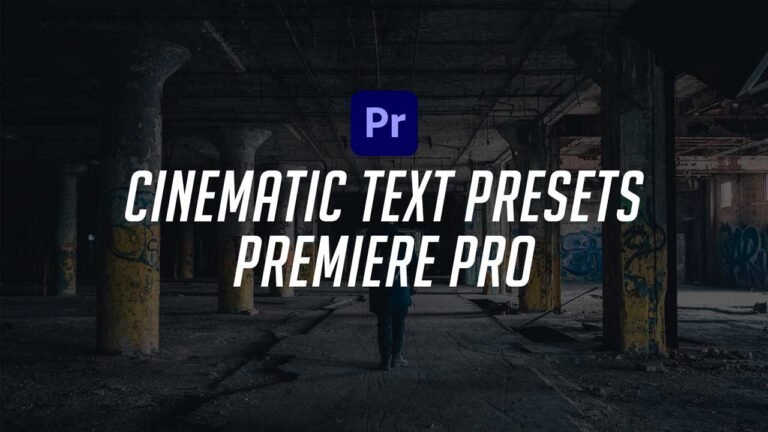
Cinematic Text Effects Adobe Premiere Pro Presets

This Cinematic Text Effect Preset Pack for Adobe Premiere Pro is one of the best preset packs that you can get today for free. This preset pack includes motion graphics which adds on to your titles to make it look cinematic. It is also very easy to add these to your titles because they are drag and drop presets. They can also give your videos an amazing animation instead of adding raw titles. Every preset can be easily used even if you don’t have enough experience of Adobe Premiere Pro. If you fall into any issues while trying to use these presets, then make sure to check the tutorial video down below.

Main Features:

  • Simple to use.
  • Drag and drop.
  • No Plugins required.
  • User-friendly template.
  • Supports all resolutions.
  • Renders quickly, so that not even a single second of yours goes to waste.
  • This Preset Pack can also be used if you have Premiere Pro 2018 (12.1) or above.

Video Tutorial Guide also included down below for extra reference.

Requirements:

  • Adobe Premiere Pro CC 2018 or above.
  • Any extracting software (like WinRAR) for extracting the .zip file.

How to Edit and Use:

  • I have already made a video on how to edit the Cinematic Text Effects Preset Pack. You will find the YouTube video linked below. You can also download the .zip file containing the preset pack from the ‘How to Download’ section just below the YouTube video as well.

License Info:

  • You may use this template for any of your videos, projects, or presentations.
  • This template can be used for private and commercial uses as well.
  • You can share this template with anyone, as well as on social media through posts, videos, etc.
  • Re-uploading and selling of these templates are not allowed.

How How to Edit or Use Cinematic Text Effects Preset Pack (Video Tutorial Guide):

How to Download these templates:

You can download Cinematic Text Effect Presets from the download button given below. Click on it and you will be redirected to Google Drive or Media fire. You can download it from there and bring it to your next project or video easily in a matter of few seconds.
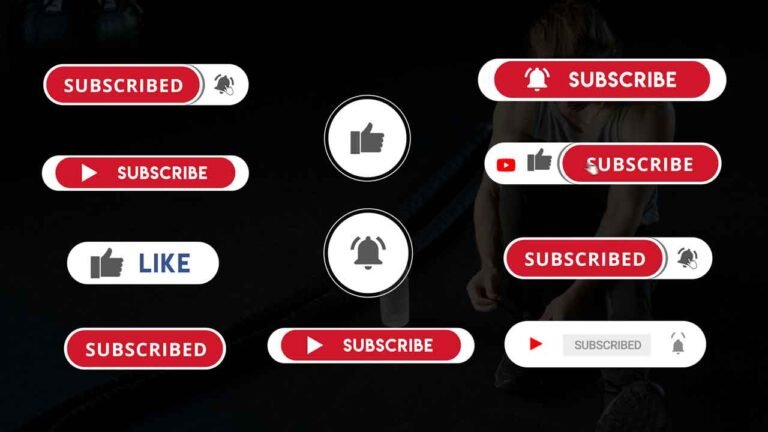
Free Subscribe and Bell Icon Intro Animations for Youtube.

If you are a content creator and you’ve been searching for Intro animation, which reminds your audience to Like, Share, or Subscribe, then you are in the right place. The Subscribe and Bell Icon Intro Animations Pack will be more than enough for your new videos. A lot of times, many people click and visit a lot of videos, but only some of them remember to Subscribe and Like their favorite videos. Forgetting to Subscribe and Like your favorite videos are very common. So, by adding these templates to your videos, you are guaranteeing yourselves to get a lot more subscribers. These Intro Animations are professionally aesthetic, which means that you don’t have to worry about people disliking the template or the video your making. The special thing about these Intro Animations pack is that they are Drag and Drop Alpha Rendered Subscribe and Like Animations which means that you can use them in any editing software! Scroll down further for the download link as well as a complete tutorial guide video to get you started, no matter what!

How to use these Animations.

  • Text & Video Tutorial Guide included Down below.
  • Each element can be easily customized within a matter of a few seconds.
  • No plugins required.
  • Drag and drop Animation
  • 4K compatible.
  • Supports all resolutions.

Requirements:

  • Any video editing software (like Premiere Pro, Filmora, Sony Vegas or others) for adding the templates to your videos.
  • Any extracting software (like Win-RAR) for extracting the .zip folder.

Features:

  • Text & Video Tutorial Guide included Down below.
  • Each element can be easily customized within a matter of a few seconds.
  • No plugins required.
  • Drag and drop template.
  • 4K compatible.
  • Supports all resolutions.
  • User-friendly template.

Tutorial:

How to download:

You can download The Like and Subscribe Intro Animations Pack from the link given below. Click on it and you will be redirected to Google Drive or Media Fire. You can easily download it from there

Image Lower Third Templates for Adobe Premiere Pro.

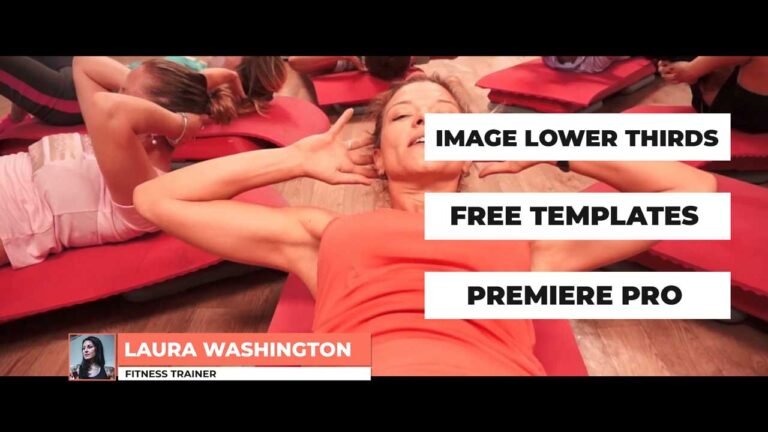
Image Lower Third Templates For Premiere Pro are one of the best, clean, modern, and professional templates that you will find. This template contains a neat look of motion graphics and can be very helpful to you if you want to introduce many characters to your audience through a video or presentation. These templates also have a lot of advantages like, they are totally free, and this template can be used both for personal and commercial purposes.

How to edit these lower thirds in Adobe Premiere Pro.

  1. Download the .zip file from the link given below in the “How to Download” Section.
  2. Extract the zip file using “7-ZIP”“WINRAR” or any other software you have.
  3. Open the .PRPROJ project file with Adobe Premiere Pro (2018 or above)
  4. If you want to know more or don’t know what to do next and need a step-by-step explanation guide to walk you through, then please watch the Video Tutorial Guide just down below to understand how to use these templates easily within a matter of few seconds. (This video will also give you a perfect start with examples for your better clarity and understanding while or before editing these templates)

Requirements:

  • Premiere Pro CC 2018(12.1) or above.
  • Any extracting software (like Win-RAR) for extracting the .zip folder.
  • Fonts Requirements: Montserrat, Raleway

Features:

  • Text & Video Tutorial (HD) Guide Included Down below for Addition Preference.
  • Each Element can be easily customized within a matter of a few seconds.
  • No Plugins Required.
  • Links for Free Fonts included in the requirements section below.
  • Drag & Drop Template.
  • 4K Compatible
  • Supports all resolutions.
  • User-friendly template.
  • Renders quickly, so that not even a single second of yours goes to waste.
  • These templates can also be used if u have Premiere Pro 2018 or above.

Video Tutorial Guide:

How to download:

You can download the .PRPROJ project file of Image Lower Third Templates For Premiere Pro from the link given below. Click on it and you will be redirected to Google Drive or Media fire. You can easily download it from there.

Light Particle Logo Intro Free Template for Adobe Premiere Pro.

Light Particle Logo Intro For Adobe Premiere Pro is a free template that can be used for giving a special touch to your videos marking your audience’s attention. This template will perfectly match your videos with just some seconds of editing. Intro also can make your videos a lot better as it is used by most of the popular video creators, you see everywhere! So, this intro template will be perfect for your next presentation because of its easy-to-use interface.

Main Features:

  • Simple to use.
  • Drag and drop.
  • No Plugins required.
  • 4K Compatible
  • Supports all resolutions.
  • Works with all media.
  • User-friendly template.
  • This Intro can also be used even if you have Premiere Pro 2018 or above.

Renders quickly, so that not even a single second of yours goes to waste.

Requirements:

  • Premiere Pro CC 2018(12.1) or above.
  • Any extracting software (like Winrar) for extracting the .zip folder.
  • You need to download these fonts before using this template:
  1. Integral CF

Supportive Resolutions:

  • Full HD – 1920×1080
  • HD – 1280×720
  • 4K – 3840×2160

How to Edit and Use:

  • I have already made a video on how to edit this Light Particle Logo Intro template. You will find the YouTube video link below. Download the zip file from the link given below. This template is purely made in Adobe Premiere pro.

License Info:

  • You may use this template for any of your videos, projects, or presentations.
  • This template can be used for private and commercial uses as well.
  • You can share this template with anyone, as well as on social media through posts, videos, etc.
  • Re-uploading and selling of these templates are not allowed.

How to Edit or Use Light Particle Logo Intro Template (Video Tutorial Guide):

How to Download these templates:

You can download the project file of Adobe Premiere Pro of the Light Particle Logo Intro Template from the link given below. Click on it and you will be redirected to Google Drive or Media fire. You can easily download it from there.

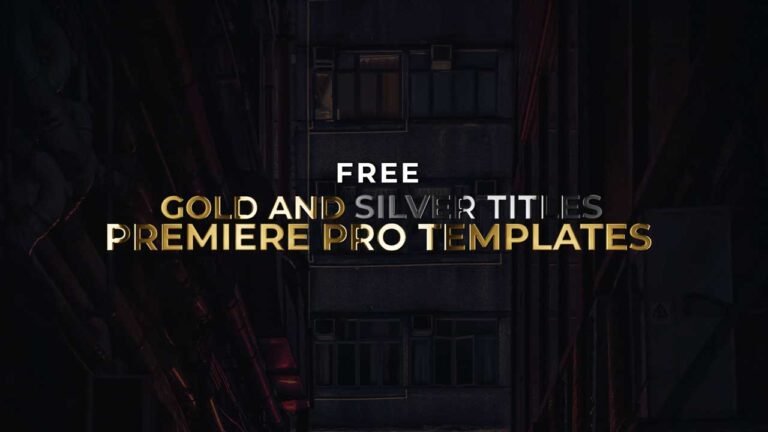
Free Gold and Silver Title Templates for Adobe Premiere Pro.

These Free Gold and Silver Title Templates for Adobe Premiere Pro can give your titles a bigger and more important feeling and look. These titles can be used as a highlighting purpose and much more. These kinds of titles can give your video a royal feeling and can impress and improve your audience.

Main Features:

  • Text & Video Tutorial (HD) Guide Included Down below for Addition Preference.
  • Each Element can be easily customized within a matter of a few seconds.
  • No Plugins Required.
  • Links for Free Fonts included in the requirements section below.
  • Drag & Drop Template.
  • 4K Compatible
  • Supports all resolutions.
  • User-friendly template.
  • Renders quickly, so that not even a single second of yours goes to waste.
  • These templates can also be used if u have Premiere Pro 2018 or above.

Requirements:

  • Premiere Pro CC 2018(12.1) or above.
  • Any extracting software (like Winrar) for extracting the .zip folder.
  • Fonts Requirements:
  1. Edwardian Script

Supportive Resolutions:

  • Full HD – 1920×1080
  • HD – 1280×720
  • Instagram – 1080×1980
  • 4K – 3840×2160

How to Edit and Use:

  1. Download the .zip file from the link given below in the “How to Download” Section.
  2. Extract the zip file using “7-ZIP”“WINRAR” or any other software you have.
  3. Install Gold and Silver Title Animation Templates into Premiere Pro through the Essential Graphics Panel.
  4. Create a sequence with a resolution of your own choice.
  5. Then Drag & Drop the Title Animation Template from the Essentials Graphics Panel onto the timeline.

License Info:

  • You may use this template for any of your videos, projects, or presentations.
  • This template can be used for private and commercial uses as well.
  • You can share this template with anyone, as well as on social media through posts, videos, etc.
  • Re-uploading and selling of these templates are not allowed.

How to Edit or Use Gold and Silver Title Template in Adobe Premiere Pro (Video Tutorial Guide):

How to Download these templates:

You can download Gold and Silver Title Templates from the download button given below. Click on it and you will be redirected to Google Drive or Media fire. You can download it from there and bring it to your next project or video easily in a matter of few seconds.
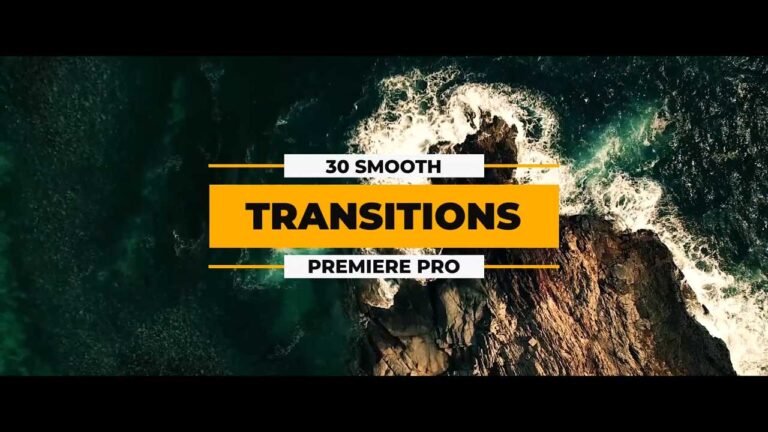
30 Free Smooth Transitions Presets Pack for Adobe Premiere Pro.

These 30 free Premiere Pro smooth transitions can change the total look of your video and can give it a perfect look for matching up to a smooth and simple presentation. These transitions are very simple and easy to use, and for further guidelines, you can watch the video below for a tutorial to understand. You can use these transitions for any purpose you want without any issues.

How to edit and use these transitions.

  • Download the .zip file from the link given below in the “How to Download” Section.
  • Extract the zip file using “7-ZIP”“WINRAR” or any other software you have.
  • Import the Transitions Preset by opening Effects in the Project or Source Window
  • Then, right-click on Presets, and select Import Presets.
  • Choose the file location of the Transitions Preset and it should be imported when you click on the drop-down menu of Presets.
  • Finally, your almost ready, but now if you want to know how to use them in your videos or whatever, then watch the video given below.

Requirements:

  • Premiere Pro CC 2015 and Above.

Supportive Resolutions:

  • Full HD – 1920 × 1080
  • HD – 1280 × 720
  • 4K – 3840 × 2160

Features:

  • Text & Video Tutorial (HD) Guide Included Down below for Addition Preference.
  • Simple to use.
  • Drag and drop.
  • No Plugins required.
  • 4K Compatible
  • Supports all resolutions.
  • Works with all media.
  • User-friendly template.
  • These Transitions can also be used even if you have Premiere Pro 2018 or above.
  • Renders quickly, so that not even a single second of yours goes to waste.

Transitions Included:

  • Exposure Transitions.
  • Fade Transitions.
  • Magnify RGB Transitions.
  • Slide Bounce Transitions.
  • Slide Spring RGB Transitions.
  • Stretch Transitions.
  • Twirl Transitions.
  • Twitch Transitions.
  • Zoom Transitions.

Tutorial Video:

How to Download:

You can download these 30 Transitions Preset from the download button given below. Click on it and you will be redirected to Google Drive or Media fire. You can download it from here and bring it to your next project or video easily within a matter of a few seconds.

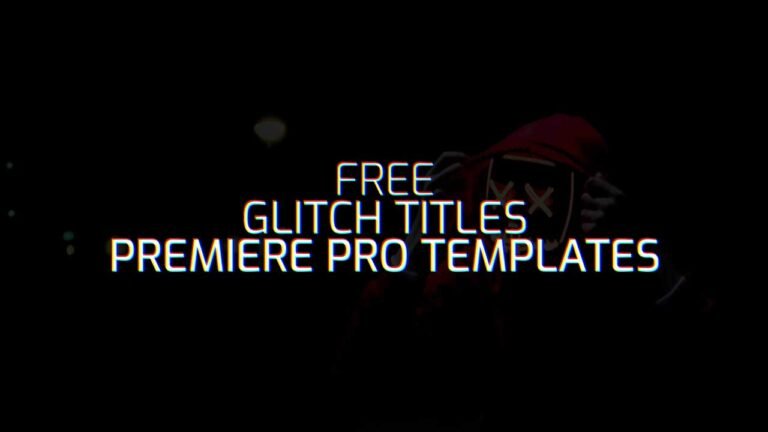
10 Free Glitch Title Templates For Adobe Premiere Pro.

The collection of these 10 Free Glitch Title Animations for Adobe Premiere Pro can be used for giving your Titles a type of Glitch Effect. These templates also have motion blur which gives your next video/project an elegant look. These templates can help you in building better videos by giving a clean and modern feeling to make your audience feel professional. These Glitch Title Templates almost fits in all types of videos including vlogs, advertisements, commercial and personal videos, etc. and the good part here is that it is completely FREE! No matter how new you are to Adobe Premiere Pro, the text and video tutorial down below will get you to the right track within minutes.

Main Features:

  • Text & Video Tutorial (HD) Guide Included Down below for Addition Preference.
  • Each Element can be easily customized within a matter of a few seconds.
  • No Plugins Required.
  • Links for Free Fonts included in the requirements section below.
  • Drag & Drop Template.
  • Supports all resolutions.
  • User-friendly template.
  • Renders quickly, so that not even a single second of yours goes to waste.
  • These templates can also be used if u have Premiere Pro 2018 or above.
  • In the standard format of MOGRT.

Requirements:

  • Premiere Pro CC 2018 or above.
  • Any extracting software (like Winrar) for extracting the .zip folder.
  • Fonts Requirements:
  1. Exo

Supportive Resolutions:

  • Full HD – 1920×1080
  • HD – 1280×720
  • Instagram – 1080×1980
  • 4K – 3840×2160

How to Edit and Use:

  • Download the .zip file from the link given below in the “How to Download” Section.
  • Extract the zip file using “7-ZIP”“WINRAR” or any other software you have.
  • Import the Glitch Title Template into Premiere Pro through the Install Essential Graphics Template option in the Essential Graphics Panel.
  • Create a sequence with a resolution of your own choice.
  • Then Drag & Drop the Title Animation Template from the Essentials Graphics Panel onto the timeline.
  • Finally, Select the Title Animation Template in the timeline & Do all the editing you want with this template in the Essential Graphics Panel. (It’s that SIMPLE!)

License Info:

  • You may use this template for any of your videos, projects, or presentations.
  • This template can be used for private and commercial uses as well.
  • You can share this template with anyone, as well as on social media through posts, videos, etc.
  • Re-uploading and selling of these templates are not allowed.

How to Edit or Use Title Animations Template in Adobe Premiere Pro (Video Tutorial Guide):

How to Download these templates:

You can download these templates from the download button given below. Click on it and you will be redirected to Google Drive or Media fire. You can download it from there and bring it to your next project or video easily with a matter of few seconds.

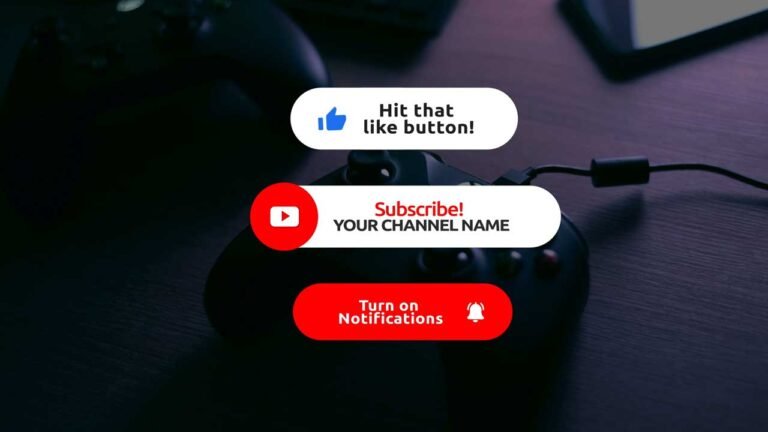
Youtube Subscribe Like and Bell Icon Intro Animation Template for Adobe Premiere Pro.

This Subscribe, Bell Icon, and Like Animation Template for Adobe Premiere Pro will help you promote a channel in a video to subscribe, click the bell icon, and like the video. This template is very easy to use because this is user friendly (IT’S REALLY SIMPLE TO USE!). This readymade template guarantees a professional feeling to a video. Almost all the famous YouTubers use these types of templates for reminding their audience to subscribe. Making people remember to subscribe to a channel will help to increase subscribers a lot, and this is proven! So, are you ready to increase your channel’s subscribers with this template? Scroll down further for the download link as well as a complete guide tutorial video to get you started, no matter you’re new to Premiere Pro or not!

Requirements:

  • Adobe premiere pro 2018 (12.1) or above.
  • Any extracting software (like WINRAR) for extracting the .zip file.
  • You need to download Ubuntu fonts to edit this template

How to Edit and Use this Template?

  1. Download the .zip file from the link given below in the “How to Download” Section.
  2. Extract the zip file using “7-ZIP”“WINRAR” or any other software you have.
  3. Import the Template into Premiere Pro through the Install Essential Graphics Template option in the Essential Graphics Panel.
  4. Create a sequence with a resolution of your own choice.
  5. Then Drag & Drop the Title Animation Template from the Essentials Graphics Panel onto the timeline.
  6. Finally, Select the Subscribe Animation Template in the timeline & Do all the editing you want with this template in the Essential Graphics Panel. (It’s that SIMPLE!)

If you have any doubts, please refer to the video shown below.

Main Features:

  • Fully animated template.
  • Easy to work and use with it.
  • No extra animation of the effects required.
  • Each Element can be easily customized within a matter of a few seconds.
  • No Plugins Required.
  • Links for Free Fonts included in the requirements section.
  • Drag & Drop Template.
  • Supports all resolutions.
  • User-friendly template.
  • Renders quickly, so that not even a single second of yours goes to waste.
  • These templates can also be used if you have Premiere Pro 2018(12.1) or above.
  • In the standard format of MOGRT.
  • Text & Video Tutorial (HD) Guide Included Down below for Addition Preference.

Tutorial Video:

How to Download this Template?

You can download this template from the download button given below. Click on it and you will be redirected to Google Drive or sometimes Media fire. You can download it from there and bring it to your next project or video easily.

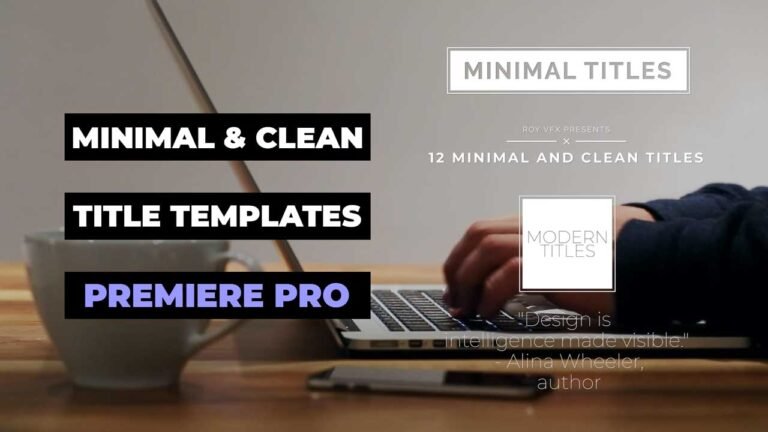
12 Minimal and Clean Premiere Pro Title Templates.

This Pack contains 12 Free, Creative, Professional, and Simple Title Animations for Premiere Pro, which will take your next presentation or project to the advanced level. It will also help you in creating better projects even faster due to its user-friendly interface because You can freely customize each element in the title animation to match them up towards your style. By using these title animations, you can make your projects much more Elegant and give them a highly modern look. Using these templates, you can save a lot of time if you want the project to be completed much faster instead of creating your own templates.

Main Features:

  • Text & Video Tutorial (HD) Guide Included Down below for Addition Preference.
  • Each Element can be easily customized within a matter of a few seconds.
  • No Plugins Required.
  • Links for Free Fonts included in the requirements section below.
  • Drag & Drop Template.
  • Supports all resolutions.
  • User-friendly template.
  • Renders quickly, so that not even a single second of yours goes to waste.
  • These templates can also be used if u have Premiere Pro 2018 or above.
  • In the standard format of .MOGRT

Requirements:

  • Premiere Pro CC 2018 or above.
  • Any extracting software (like Winrar) for extracting the .zip folder.
  • Fonts Requirements:
  1. Montserrat
  2. Raleway

Supportive Resolutions:

  • Full HD – 1920×1080
  • HD – 1280×720
  • Instagram – 1080×1980
  • 4K – 3840×2160

How to Edit and Use:

  1. Download the .zip file from the link given below in the “How to Download” Section.
  2. Extract the zip file using “7-ZIP”“WINRAR” or any other software you have.
  3. Import the Title Animations Template into Premiere Pro through the Install Essential Graphics Template option in the Essential Graphics Panel.
  4. Create a sequence with a resolution of your own choice.
  5. Then Drag & Drop the Title Animation Template from the Essentials Graphics Panel onto the timeline.
  6. Finally, Select the Title Animation Template in the timeline & Do all the editing you want with this template in the Essential Graphics Panel. (It’s that SIMPLE!)

If you have any doubts, please refer to the video shown below.

License Info:

  • You may use this template for any of your videos, projects, or presentations.
  • This template can be used for private and commercial uses as well.
  • You can share this template with anyone, as well as on social media through posts, videos, etc.
  • Re-uploading and selling of these templates are not allowed.

How to Edit or Use Title Animations Template in Adobe Premiere Pro (Video Tutorial Guide):

How to Download these templates:

You can download this template from the download button given below. Click on it and you will be redirected to Google Drive or Media fire. You can download it from there and bring it to your next project or video easily with a matter of few seconds.

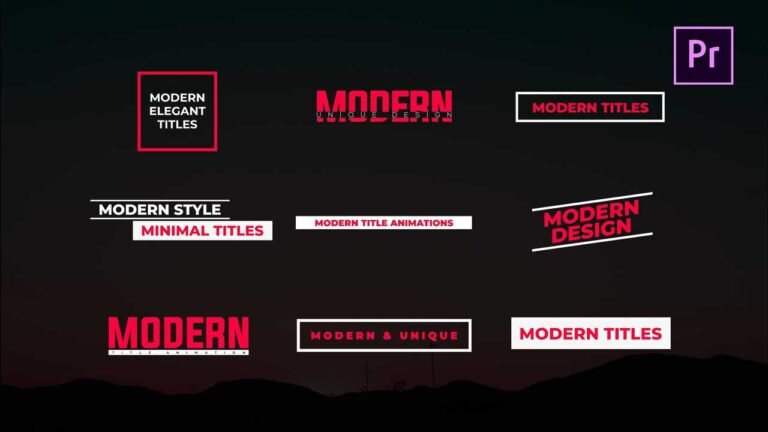
10 Free Modern and Clean Title Animations Premiere Pro Templates.

10 Free Modern, Elegant, and Clean Title Animations Premiere Pro templates are best for your next project or presentation. Complete control is given to easily customize each element in this template in Premiere Pro so that it matches your look and style. Be free to edit these templates scale, color, font, text, position, and a lot more without wasting a whole day creating titles for your next project. Give your videos a professional and dynamic look by just downloading this High-Quality Premiere Pro Title Animations Template For FREE. All the parameters of this Uniquely Designed Template can be edited and used as an overlay in your videos within seconds.

How to Edit or Use Title Animations Template in Adobe Premiere Pro:

  • Text & Video Tutorial Guide Included Down below for Addition Preference.
  • Each Element can be easily customized within a matter of a few seconds.
  • No Plugins Required.
  • Links for free Fonts included in the requirements section below.
  • Drag & Drop Template.
  • Supports all resolutions.
  • User-friendly template.
  • No need of any Experience with Premiere Pro to use or customize these Titles.
  • Renders really fast, so that not even a single second of yours goes to waste.

Requirements:

  • Premiere Pro CC 2018.1 or above.
  • You need to download these fonts before you use or edit these Title Templates
  1. Nexa
  2. Montserrat
  3. Evogria

How to Edit or Use Title Animations Template in Adobe Premiere Pro (Text Tutorial Guide):

  • Download the .zip file from the link given below in the “How to Download” Section.
  • Extract the zip file using “7-ZIP”“WINRAR” or any other software you have.
  • Import the Title Animations Template into Premiere Pro through the Install Essential Graphics Template option in the Essential Graphics Panel.
  • Create a sequence with a resolution of your own choice.
  • Then Drag & Drop the Title Animation Template from the Essentials Graphics Panel onto the timeline.
  • Finally, Select the Title Animation Template in the timeline & Do all the editing you want with this template in the Essential Graphics Panel. (It’s that SIMPLE!)
  • If you have any doubts, please refer to the video shown above.

License Info:

  • You may use this template for any of your videos, projects, or presentations.
  • This template can be used for private and commercial uses as well.
  • You can share this template with anyone, as well as on social media through posts, videos, etc.
  • Re-uploading and selling of these templates are not allowed.

How to Edit or Use Title Animations Template in Adobe Premiere Pro (Video Tutorial Guide):

How to Download these templates:

You can download this template from the download button given below. Click on it and you will be redirected to Google Drive or Media fire. You can download it from there and bring it to your next project or video easily with a matter of few seconds.