Home Blog Page 2

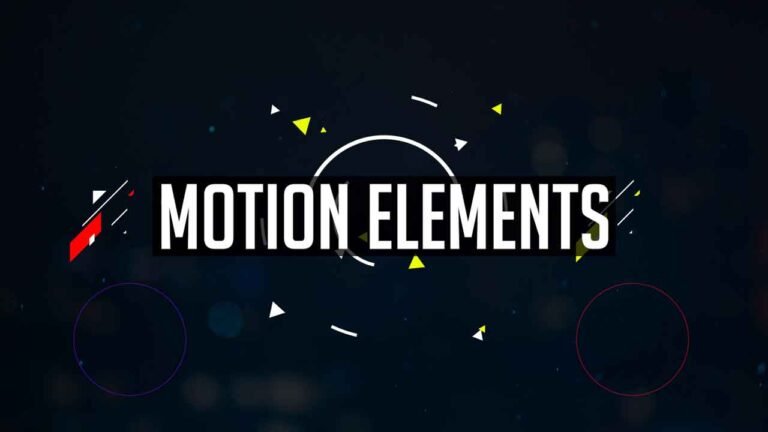
40 Free Motion Elements Templates for Adobe Premiere Pro.

This Motion elements pack contains 40 creative shape and liquid elements Premiere Pro templates. Make awesome, cool, and creative videos using these templates. This pack contains different types of shape elements. These motion graphics templates are very easy to customize and use.

Main Features:

  • Text & Video Tutorial (HD) Guide Included Down below for Addition Preference.
  • Each Element can be easily customized within a matter of a few seconds.
  • No Plugins Required.
  • Drag & Drop Template.
  • Supports all resolutions.
  • User-friendly template.
  • Renders quickly, so that not even a single second of yours goes to waste.
  • These templates can be used if you have Premiere Pro 2018(12.1) or above.
  • In the standard format of MOGRT.

Requirements:

  • Premiere Pro CC 2018(12.1) or above.
  • Any extracting software (like Winrar) for extracting the .zip folder.

Supportive Resolutions:

  • Full HD – 1920×1080
  • HD – 1280×720
  • Instagram – 1080×1980
  • 4K – 3840×2160

How to edit and use 40 Motion Elements Templates:

  1. Download the .zip file from the link given below in the “How to Download” Section.
  2. Extract the zip file using “7-ZIP”“WINRAR” or any other software you have.
  3. Import the Motion element Templates into Premiere Pro through the Install Essential Graphics Template option in the Essential Graphics Panel.
  4. Create a sequence with a resolution of your own choice.
  5. Then Drag & Drop the Motion element Templates from the Essentials Graphics Panel onto the timeline.
  6. Finally, Select the Motion element templates in the timeline & Do all the editing you want with this template in the Essential Graphics Panel. (It’s that SIMPLE!)

If you have any doubts, please refer to the video shown below.

This Pack Includes:

  • Shape elements.
  • Glow effect.
  • liquid elements.

How to edit and use 40 Motion Elements Template in Adobe Premiere Pro: (Video Tutorial Guide):

How to Download 40 Motion Elements Template for Adobe Premiere Pro:

You can download these templates from the download button given below. Click on it and you will be redirected to Google Drive or Media fire. You can download it from there and bring it to your next project or video easily in a matter of few seconds.
30 Free Motion Graphics Elements for Adobe Premiere Pro.

This Motion Graphics elements pack contains 30 creative shape elements. Make awesome, cool, and creative videos using these Elements. This pack contains different types of shape elements. These motion graphics Elements are very easy to customize and use.

Requirements:

  • any video editing software.
  • Any extracting software (like WinRAR) for extracting the .zip file.

Features:

  • Simple to use.
  • Drag and drop.
  • No Plugins required.
  • Supports all resolution.
  • Video tutorial.

License Info:

  • You may use this template for any of your videos, projects, or presentations.
  • This template can be used for private and commercial uses as well.
  • You can share this template with anyone, as well as on social media through posts, videos, etc.
  • Re-uploading and selling of these templates are not allowed.

How to Edit or Use Overlay Motion Elements (Video Tutorial Guide):

How to Download 30 Motion Graphics Elements templates:

You can download these templates from the download button given below. Click on it and you will be redirected to Google Drive or Media fire. You can download it from there and bring it to your next project or video easily in a matter of few seconds.
Free Fire Logo Intro Premiere Pro Template.

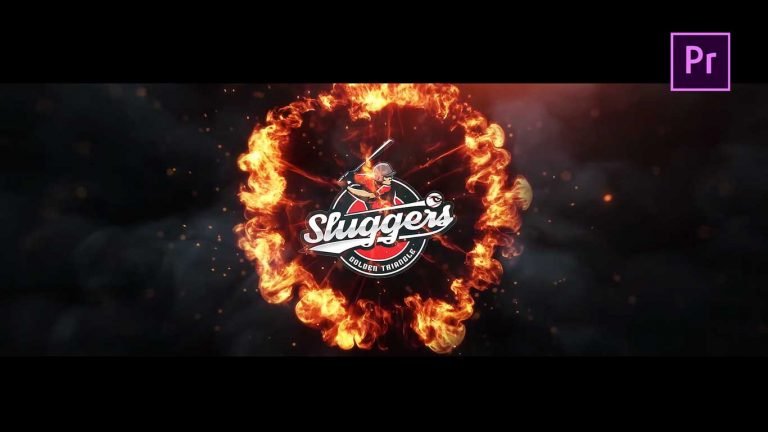
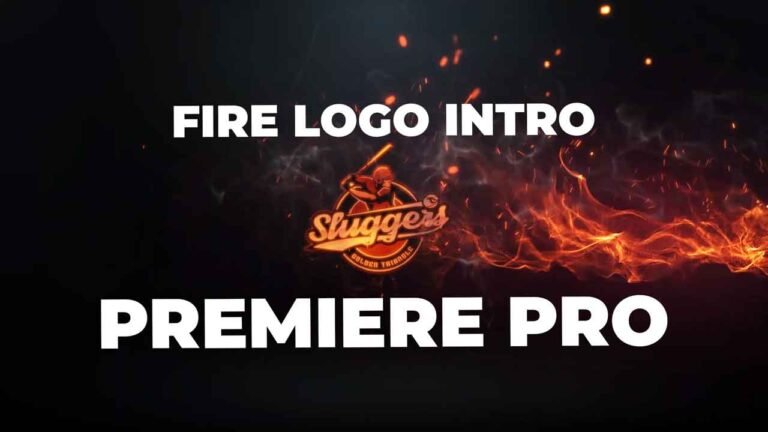
Fire Logo intro is a powerful Adobe Premiere Pro Template that is a combination of fire and Particles. This Template contains one logo place holder and one Text holder. You can use this awesome template as Youtube Intro.

How to edit Fire Logo Intro Template in Adobe Premiere Pro:

I have already made a video on how to edit this Fire Title Intro template. You will find the YouTube video link below. Download the zip file from the link given below. This template is purely made in Adobe Premiere pro.

Requirements:

  • Premiere Pro CC 2018 and Above.

Supportive Resolutions:

  • Full HD – 1920×1080

Features:

  1. Easily change logo and Text
  2. Font Changing Feature.
  3. Full HD.
  4. No Plugins required.
  5. Video Tutorial.

How to Edit Fire Logo Intro Premiere Pro Template (Video Tutorial Guide):

How to Download Fire Logo Intro template:

You can download the template from the link given below. Click on it and you will be redirected to Google Drive or Media Fire. You can easily download it from there.

20 Free Adobe Premiere Pro Color Grading Presets.

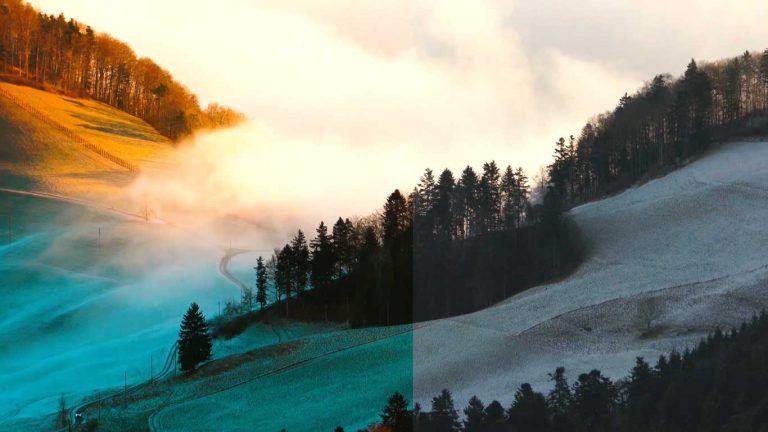
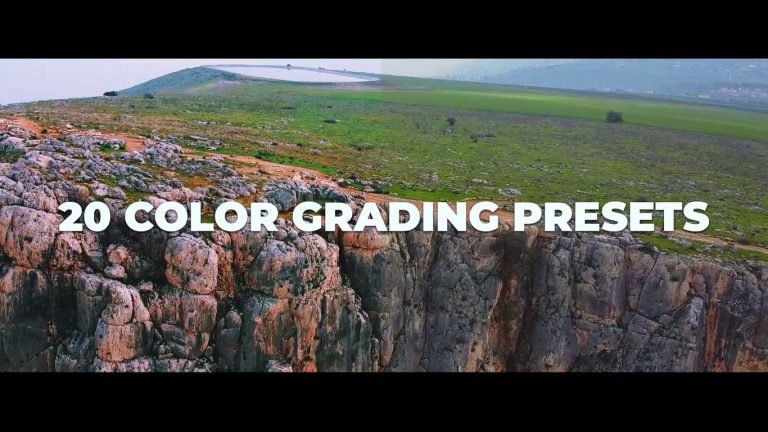
20 awesome cinematic color grading presets for Adobe Premiere Pro. These presets are very easy to use. Just drag and drop it to the adjustment layer. These preset work with any resolution. Download this presets pack and start creating cinematic videos.

How to use Color Grading Luts Presets in Adobe Premiere Pro?

  • Download the zip file from the link given below.
  • Extract the zip file using “WINZIP”, “WINRAR” or any other software you have.
  • Import preset pack through effects panel in Premiere Pro.
  • Apply preset directly on footage or take adjustment layer, Place it above the video and apply preset on adjustment layer.

Requirements:

  • Premiere Pro CC.

Features:

  • Simple to use.
  • Drag and Drop.
  • Work with all resolutions(HD, FullHD, UltraHD, 4K).
  • Video tutorial.

      This Pack Includes:

      • 20 Presets
      • Cinematic look.

      How to use Color Grading Presets(Video Tutorial Guide):

      How to Download:

      You can download these transitions from the link given. Click on it and you will redirect to Google Drive or Mediafire. You can easily download it from there.

      Cinematic Color Grading Preset Pack For Adobe Premiere Pro.

      If you want to make the look of your footage cinematic then this Color grading Preset is an awesome pack for you. This pack contains 5 cinematic presets. Give your footage a modern and cinematic look using this Preset Pack.

      How to use Color Grading Luts Presets in Adobe Premiere Pro?

      • Download the zip file from the link given below.
      • Extract the zip file using “WINZIP”, “WINRAR” or any other software you have.
      • Import preset pack through effects panel in Premiere Pro.
      • Apply preset directly on footage or take adjustment layer, Place it above the video and apply preset on adjustment layer.

      Requirements:

      • Premiere Pro CC.

      Features:

      • Simple to use.
      • Drag and Drop.
      • Support all resolutions.
      • Video tutorial.

          This Pack Includes:

          • 5 Presets
          • Cinematic look.
          • Hollywood style presets.
          • Cinematic style presets.

          How to use Cinematic Color Grading Presets(Video Tutorial Guide):

          How to Download:

          You can download these transitions from the link given. Click on it and you will redirect to Google Drive or Mediafire. You can easily download it from there.

          10 Free Shape Transitions Templates for Adobe Premiere Pro.

          This Pack contains 10 unique and colorful shape Transitions that can change the total look of your video and can give it a perfect look for matching up to a smooth and simple presentation. Easily change the color of shapes using controllers. You can use these transitions for any purpose you want without any issues.

          How to edit and use these transitions in Adobe Premiere Pro.

          • Download the .zip file from the link given below in the “How to Download” Section.
          • Extract the zip file using “7-ZIP”“WINRAR” or any other software you have.
          • Install these shape transition templates through essential graphics panel.
          • Place any of these transitions to your project sequence and edit accordingly.
          • Finally, your almost ready, but now if you want to know how to use them in your videos or whatever, then watch the video given below.

          Requirements:

          • Premiere Pro CC 2018(12.1) or Above.

          Features:

          • Text & Video Tutorial (HD) Guide Included Down below for Addition Preference.
          • Simple to use.
          • Drag and drop.
          • No Plugins required.
          • Full HD Compatible
          • Works with all media.
          • User-friendly template.
          • Renders quickly, so that not even a single second of yours goes to waste.

          Transitions Included:

          • Blur Transitions.
          • Spin Transitions.
          • Film Roll Transitions.
          • Zoom Transitions.
          • Bloom Transitions.
          • Scroll Transitions.

          How to edit and use Shape transitions(Video Tutorial Guide):

          How to Download:

          You can download these shape Transitions templates from the download button given below. Click on it and you will be redirected to Google Drive or Media fire. You can download it from here and bring it to your next project or video easily within a matter of a few seconds.

          40 Free Smooth Transitions Presets Pack for Adobe Premiere Pro.

          These 40 free smooth transitions preset pack can change the total look of your video and can give it a perfect look for matching up to a smooth and simple presentation. These transitions are very simple and easy to use, and for further guidelines, you can watch the video below for a tutorial to understand. You can use these transitions for any purpose you want without any issues.

          How to use these Transitions Presets in Adobe Premiere Pro.

          • Download the .zip file from the link given below in the “How to Download” Section.
          • Extract the zip file using “7-ZIP”“WINRAR” or any other software you have.
          • Import the Transitions Preset by opening Effects in the Project or Source Window
          • Then, right-click on Presets, and select Import Presets.
          • Choose the file location of the Transitions Preset and it should be imported when you click on the drop-down menu of Presets.
          • Finally, your almost ready, but now if you want to know how to use them in your videos or whatever, then watch the video given below.

          Requirements:

          • Premiere Pro CC 2015 and Above.

          Features:

          • Text & Video Tutorial (HD) Guide Included Down below for Addition Preference.
          • Simple to use.
          • Drag and drop.
          • No Plugins required.
          • 4K Compatible
          • Supports all resolutions.
          • Works with all media.
          • User-friendly template.
          • These Transitions can also be used even if you have Premiere Pro 2015 or above.
          • Renders quickly, so that not even a single second of yours goes to waste.

          Transitions Included:

          • Blur Transitions.
          • Spin Transitions.
          • Film Roll Transitions.
          • Zoom Transitions.
          • Bloom Transitions.
          • Scroll Transitions.

          Tutorial Video:

          How to Download:

          You can download these 40 Transitions Preset Pack from the download button given below. Click on it and you will be redirected to Google Drive or Media fire. You can download it from here and bring it to your next project or video easily within a matter of a few seconds.

          Free Shake Transitions Preset Pack for Adobe Premiere Pro.

          These Free Shake transitions preset pack can change the total look of your video. These transitions are very simple and easy to use, and for further guidelines, you can watch the video below for a tutorial to understand. You can use these transitions for any purpose you want without any issues.

          How to edit and use these transitions:

          Download the .zip file from the link given below in the “How to Download” Section.

          Extract the zip file using “7-ZIP”“WINRAR” or any other software you have.

          Import the Transitions Preset by opening Effects in the Project or Source Window

          Then, right-click on Presets, and select Import Presets.

          Choose the file location of the Transitions Preset and it should be imported when you click on the drop-down menu of Presets.

          Finally, you are almost ready, but now if you want to know how to use them in your videos or whatever, then watch the video given below.

          Requirements:

          • Premiere Pro CC 2015 and Above.

          Features:

          • Text & Video Tutorial (HD) Guide Included Down below for Addition Preference.
          • Simple to use.
          • Drag and drop.
          • No Plugins required.
          • 4K Compatible
          • Supports all resolutions.
          • Works with all media.
          • User-friendly template.
          • These Transitions can also be used even if you have Premiere Pro 2015 or above.
          • Renders quickly, so that not even a single second of yours goes to waste.

            Tutorial Video:

            How to Download:

            You can download these Shake Transitions Preset Pack from the download button given below. Click on it and you will be redirected to Google Drive or Media fire. You can download it from here and bring it to your next project or video easily within a matter of a few seconds.

            30 Cinematic Color Grading presets for Adobe Premiere Pro.

            Looking for free Instant Color grading Presets pack to change the overall look of your next project. This color grading presets pack works best in Adobe Premiere Pro.

            How to use Color Grading Luts Presets in Adobe Premiere Pro:

            Download the zip file from the link given below.

            Extract the zip file using “WINZIP”, “WINRAR” or any other software you have.

            Import preset pack through effects panel in Premiere Pro.

            Apply preset directly on footage or take adjustment layer, Place it above the video and apply preset on adjustment layer.

            Requirements:

            • Premiere Pro CC 2015 and Above.

            Features:

            • Simple to use.
            • Drag and Drop.
            • Support all resolutions.
            • Video tutorial.

                This Pack Includes:

                • 20 Presets
                • Cinematic look.
                • Hollywood style presets.
                • Cinematic style presets.
                • Warm style presets.
                • Urban style presets.

                How to use 30 Free Cinematic Color Grading Presets(Video Tutorial Guide):

                How to Download:

                You can download these transitions from the link given. Click on it and you will redirect to Google Drive or Mediafire. You can easily download it from there.

                Fire Logo Intro Adobe Premiere Pro Template.

                Fire Logo intro is a powerful Adobe Premiere Pro Template that is a combination of fire and Particles. This Template contains one logo place holder and one Text holder. You can use this awesome template as Youtube Intro.

                How to edit Fire Logo Intro Template in Adobe Premiere Pro:

                I have already made a video on how to edit this Fire Title Intro template. You will find the YouTube video link below. Download the zip file from the link given below. This template is purely made in Adobe Premiere pro.

                Requirements:

                • Premiere Pro CC 2018 and Above.

                Supportive Resolutions:

                • Full HD – 1920×1080

                Features:

                1. Easily change logo and Text
                2. Font Changing Feature.
                3. Full HD.
                4. No Plugins required.
                5. Video Tutorial.

                How to Edit Fire Logo Intro Premiere Pro Template (Video Tutorial Guide):

                How to Download Fire Logo Intro template:

                You can download the template from the link given below. Click on it and you will be redirected to Google Drive or Media Fire. You can easily download it from there.