Here are Free Funny Cartoon Sound effects that you can use for your edits. It includes various funny cartoon sound effects like boing, Bounce, fails, falls, Pop, Toing, splash, whistle, clowns, etc.
Main Features:
Drag and drop.
High quality.
Requirements:
any video editing software.
Any extracting software (like WinRAR) for extracting the .zip file.
How to Download these Funny Cartoon sound effects:
You can download these Sound effects from the download button given below. Click on it and you will be redirected to Google Drive or Mediafire. You can download it from there and bring it to your next project or video easily in a matter of a few seconds.
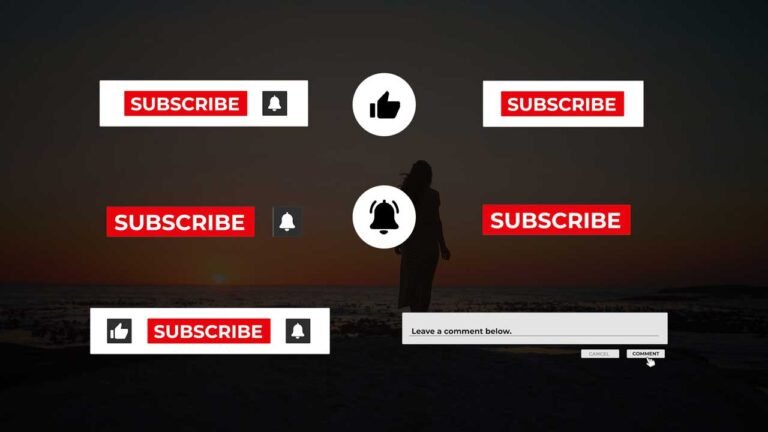
Here are free YouTube subscribe and bell Animations alpha channel and green Screen overlays that you can use in your videos. Download and use them in your next videos
Main Features:
Drag and drop.
High quality.
Full HD
Requirements:
Any video editing software.
Any extracting software (like WinRAR) for extracting the .zip file.
How to use YouTube Subscribe animation overlays:
Just put these overlays at the top of your video clip.
If you are using green screen version, remove it’s background through key effect.
If you are using alpha channel version then just put these overlays at the top of your video clip and you are done.
How to Download YouTube Subscribe animation overlays:
You can download these YouTube Subscribe animation overlays from the download button given below. Click on it and you will be redirected to Google Drive or Mediafire. You can download it from there and bring it to your next project or video easily in a matter of few seconds.
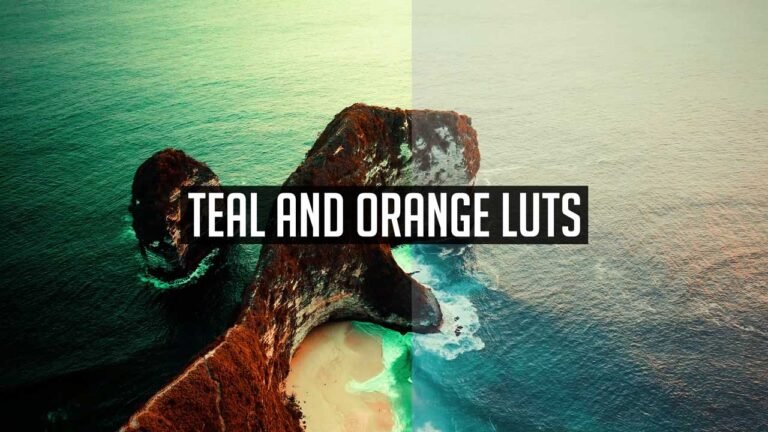
If you want to make the look of your footage stand out through color grading Luts then 10 Free Teal and Orange Luts is an awesome pack for you. This pack contains 10 .cube files. Give your footage a modern and vibrant look using these Luts.
What are Luts?
Luts stands for look-up tables. These are Presets that serve as a just starting point to color grade your footage or image, just in a few clicks.
How to use Teal and Orange Luts Presets in Adobe Premiere Pro?
Download the zip file from the link given below.
Extract the zip file using “WINZIP”, “WINRAR” or any other software you have.
Copy all extracted cube files and go to the location where you installed premiere pro.
Go to the Lumetri folder.
Find the Creative folder.
Paste All luts to the creative folder.
Open Premiere Pro.
Open Lumetri color.
Select footage, Go to creative tab, Select the Look Drop-Down menu. Click on browse.
Select the lut and you are done!
Requirements:
Premiere Pro CC.
Features:
Simple to use.
Drag and drop.
No Plugins required.
Supports all resolution.
Video tutorial.
This Pack Includes:
10 .cube LUTs files.
Teal and Orange Look.
How to use Teal and Orange Luts (Video Tutorial Guide):
How to Download Teal and Orange Lut pack:
You can download Teal and Orange Luts from the link given. Click on it and you will redirect to Google Drive or Mediafire. You can easily download it from there.
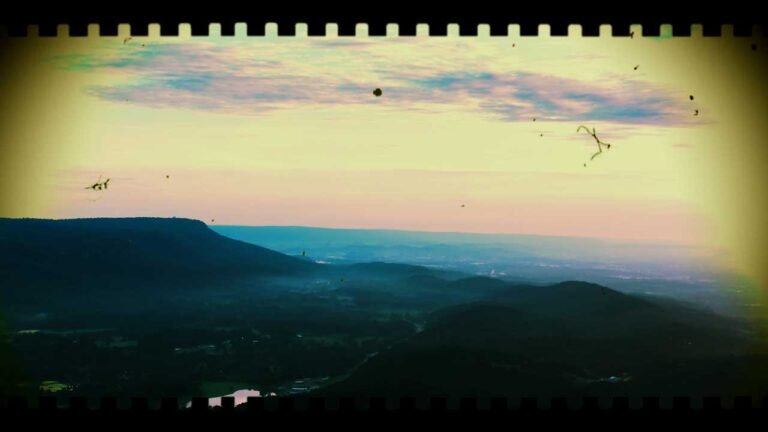
Here are 10 free old film overlays that you can use in your videos. Download and use them in your next videos
Main Features:
Drag and drop.
High quality.
Full HD
Requirements:
Any video editing software.
Any extracting software (like WinRAR) for extracting the .zip file.
How to use Old film overlays:
Just put these overlays at the top of your video clip.
Change overlays blend mode to darken.
Color correct your footage and you are done.
How to Download Old film overlay Pack:
You can download Old film overlays pack from the download button given below. Click on it and you will be redirected to Google Drive or Mediafire. You can download it from there and bring it to your next project or video easily in a matter of few seconds.
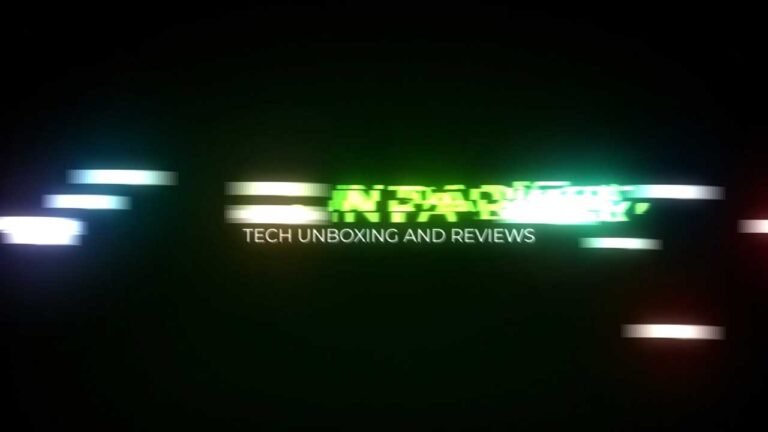
Fast Title Intro is a modern and clean Premiere Pro template with stylish design and creatively animated title animation. A Premiere Pro Template that’s sure to grab your audience’s attention with its stylish text animation. It is super easy to customize and use. Create amazing intros and trailers with this template. Impress your audience with this Powerful Intro.
Main Features:
Easy to use.
No Plugins required.
Full HD Compatible
Works with all media.
User-friendly template.
Renders quickly, so that time won’t be wasted.
The template can be used even if you have Premiere Pro 2018 (12.1) or above.
Video Tutorial Guide included as well for extra reference.
In the standard format of MOGRT.
Requirements:
Premiere Pro CC 2018 or above.
Any extracting software (like Winrar) for extracting the .zip folder.
Download the .zip file from the link given below in the “How to Download” Section.
Extract the zip file using “7-ZIP”, “WINRAR” or any other software you have.
Import the Fast Title Intro Template in to Premiere Pro through the Install Essential Graphics Template option in the Essential Graphics Panel.
Create a sequence with a resolution of your own choice.
Then Drag & Drop the title intro template from the Essentials Graphics Panel onto the timeline.
Finally, Select the Template in the timeline & Do all the editing you want with this template in the Essential Graphics Panel. (It’s that SIMPLE!)
How to Edit Fast Title Intro Template (Video Tutorial Guide):
How to Download Fast Title Intro template:
You can download the templatefrom the link given below. Click on it and you will be redirected to Google Drive or Media Fire. You can easily download it from there for free.
Here are 30 Risers and Falls Sound effects that you can use for your edits. It includes various risers and falls sound effects like bubbles, Power-ups, wobbly, clicks, etc.
Main Features:
Drag and drop.
High quality.
Requirements:
any video editing software.
Any extracting software (like WinRAR) for extracting the .zip file.
How to Download these Risers and Falls sound effects:
You can download Sound effects from the download button given below. Click on it and you will be redirected to Google Drive or Mediafire. You can download it from there and bring it to your next project or video easily in a matter of few seconds.
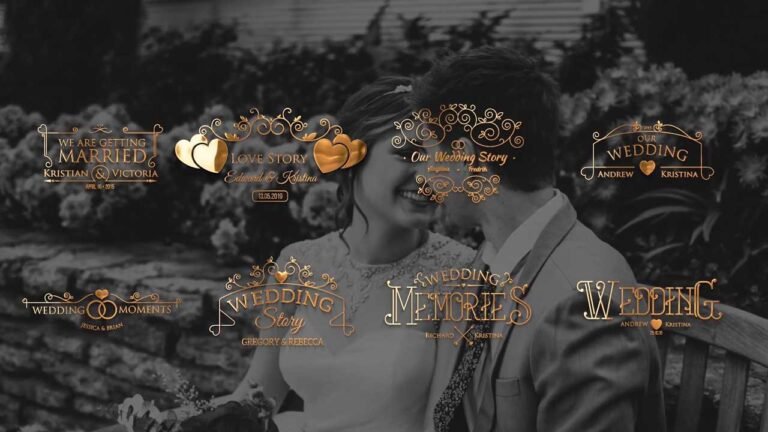
Free Animated wedding Gold title templates are Premiere Pro templates with a beautiful and elegant design. Create amazing wedding intros, slideshows, and wedding trailers. It is super simple to customize and use. It includes 8 gold wedding titles. Add amazing titles to your wedding or anniversary videos.
Main Features:
Text & Video Tutorial (HD) Guide Included Down below for Addition Preference.
Each Element can be easily customized within a matter of a few seconds.
No Plugins Required.
Links for Free Fonts included in the requirements section below.
Drag & Drop Template.
Supports all resolutions.
User-friendly template.
Font-changing feature.
Renders quickly, so that not even a single second of yours goes to waste.
In the standard format of MOGRT.
Requirements:
Premiere Pro CC 2018(12.1) or above.
Any extracting software (like WinRAR) for extracting the .zip folder.
Download the .zip file from the link given below in the “How to Download” Section.
Extract the zip file using “7-ZIP”, “WINRAR” or any other software you have.
Import the Gold Wedding title Templates in to Premiere Pro through the Install Essential Graphics Template option in the Essential Graphics Panel.
Create a sequence with a resolution of your own choice.
Then Drag & Drop the Gold wedding title template from the Essentials Graphics Panel onto the timeline.
Finally, Select the Template in the timeline & Do all the editing you want with this template in the Essential Graphics Panel. (It’s that SIMPLE!)
License Info:
You may use this template for any of your videos, projects, or presentations.
This template can be used for private and commercial uses as well.
You can share this template with anyone, as well as on social media through posts, videos, etc.
Re-uploading and selling of these templates are not allowed.
How to Edit or Use Gold Wedding Title Template in Adobe Premiere Pro (Video Tutorial Guide):
How to Download Gold wedding title templates:
You can download these templates from the download button given below. Click on it and you will be redirected to Google Drive or Media fire. You can download it from there and bring it to your next project or video easily in a matter of a few seconds.
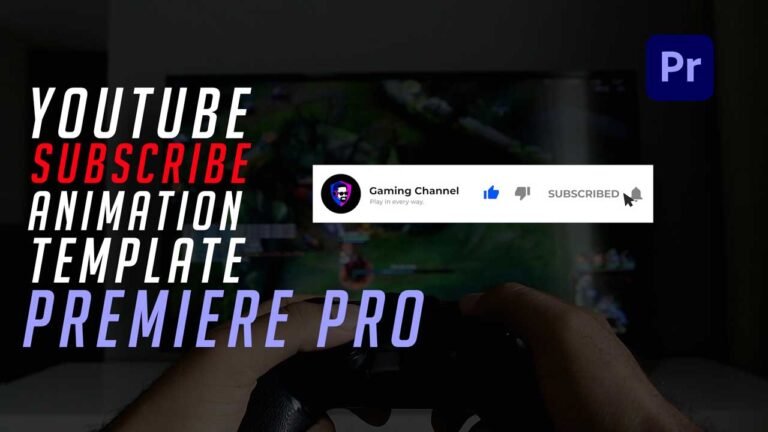
This YouTube Like, Subscribe, and bell intro Animation Template for Adobe Premiere Pro will help you promote your channel in a video to subscribe and click the bell icon. This template is very easy to use because this is user-friendly (IT’S REALLY SIMPLE TO USE!). This readymade template guarantees a professional feeling to a video. Almost all famous YouTubers use these types of templates for reminding their audience to subscribe. Making people remember to subscribe to a channel will help to increase subscribers a lot, and this is proven! So, are you ready to increase your channel’s subscribers with this template? Scroll down further for the download link as well as a complete guide tutorial video to get you started, no matter you’re new to Premiere Pro or not!
Requirements:
Adobe premiere pro 2018 (12.1) or above.
Any extracting software (like WINRAR) for extracting the .zip file.
You need to download Montserrat fonts to edit this template
How to Edit and Use this Template?
Download the .zip file from the link given below in the “How to Download” Section.
Extract the zip file using “7-ZIP”, “WINRAR” or any other software you have.
Open the Project file according to your Premiere Pro version.
To Change Logo, Open logo sequence. Add your logo.
To change channel name and tagline, select file, open essential graphics panel and change.
If you have any doubts, please refer to the video shown below.
Main Features:
Fully animated template.
Easy to work and use with it.
No extra animation of the effects required.
Each Element can be easily customized within a matter of a few seconds.
No Plugins Required.
Links for Free Fonts included in the requirements section.
Drag & Drop Template.
Supports all resolutions.
User-friendly template.
Renders quickly, so that not even a single second of yours goes to waste.
These templates can also be used if you have Premiere Pro 2018(12.1) or above.
Text & Video Tutorial (HD) Guide Included Down below for Addition Preference.
License Info:
You may use this template for any of your videos, projects, or presentations.
This template can be used for private and commercial uses as well.
You can share this template with anyone, as well as on social media through posts, videos, etc.
Re-uploading and selling of these templates are not allowed.
How to Edit and use YouTube Subscribe Animation Template (Video Tutorial Guide):
How to Download Youtube Subscribe Animation Template:
You can download this template from the download button given below. Click on it and you will be redirected to Google Drive or sometimes Media fire. You can download it from there and bring it to your next project or video easily.
Here are free Old film Sound effects that you can use for your edits. You can use these sound effects to give your video an old film look. It includes noises, old film camera sound effects, Projector sound effects, etc.
Main Features:
Drag and drop.
High quality.
Requirements:
any video editing software.
Any extracting software (like WinRAR) for extracting the .zip file.
License Info:
You may use these sound effects for any of your videos, projects, or presentations.
You can share these sound effects with anyone, as well as on social media through posts, videos, etc.
How to Download these Old film sound effects:
You can download these Sound effects from the download button given below. Click on it and you will be redirected to Google Drive or Mediafire. You can download it from there and bring it to your next project or video easily in a matter of few seconds.
This YouTube Subscribe Button Animation Template for Adobe Premiere Pro will help you promote your channel in a video to subscribe and click the bell icon. This template is very easy to use because this is user-friendly (IT’S REALLY SIMPLE TO USE!). This readymade template guarantees a professional feeling to a video. Almost all famous YouTubers use these types of templates for reminding their audience to subscribe. Making people remember to subscribe to a channel will help to increase subscribers a lot, and this is proven! So, are you ready to increase your channel’s subscribers with this template? Scroll down further for the download link as well as a complete guide tutorial video to get you started, no matter you’re new to Premiere Pro or not!
Requirements:
Adobe premiere pro 2018 (12.1) or above.
Any extracting software (like WINRAR) for extracting the .zip file.
You need to download Montserrat fonts to edit this template
How to Edit and Use this Template?
Download the .zip file from the link given below in the “How to Download” Section.
Extract the zip file using “7-ZIP”, “WINRAR” or any other software you have.
Open the Project file according to your Premiere Pro version.
To Change Logo, Open logo sequence. add your logo
To change channel name and tagline, select motion graphics template, open essential graphics panel and change.
If you have any doubts, please refer to the video shown below.
Main Features:
Fully animated template.
Easy to work and use with it.
No extra animation of the effects required.
Each Element can be easily customized within a matter of a few seconds.
No Plugins Required.
Links for Free Fonts included in the requirements section.
Drag & Drop Template.
Supports all resolutions.
User-friendly template.
Renders quickly, so that not even a single second of yours goes to waste.
These templates can also be used if you have Premiere Pro 2018(12.1) or above.
Text & Video Tutorial (HD) Guide Included Down below for Addition Preference.
License Info:
You may use this template for any of your videos, projects, or presentations.
This template can be used for private and commercial uses as well.
You can share this template with anyone, as well as on social media through posts, videos, etc.
Re-uploading and selling of these templates are not allowed.
How to Edit and use YouTube Subscribe Animation Template (Video Tutorial Guide):
How to Download Youtube Subscribe Animation Template:
You can download this template from the download button given below. Click on it and you will be redirected to Google Drive or sometimes Media fire. You can download it from there and bring it to your next project or video easily.